Members are the people who build your home inventory with you: a spouse, a partner, a roommate, a grown child. Each member signs in with their own account and sees the same home you do, so the inventory fills up faster.
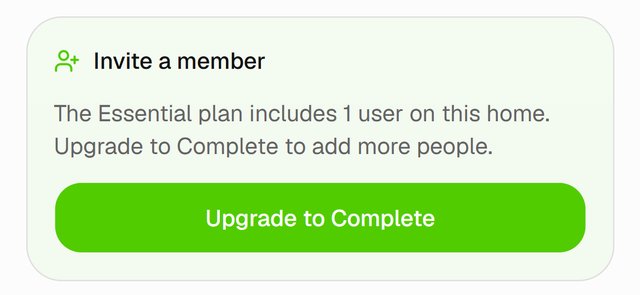
Before you start: adding members is available on Homvi Complete. A Complete home has room for up to 4 people: you and up to 3 members. Invites you've sent that haven't been accepted yet count toward the 4. On the free Essential plan, a home has room for you only, and Sharing shows an Upgrade to Complete button instead of the invite form.
1. Open Sharing
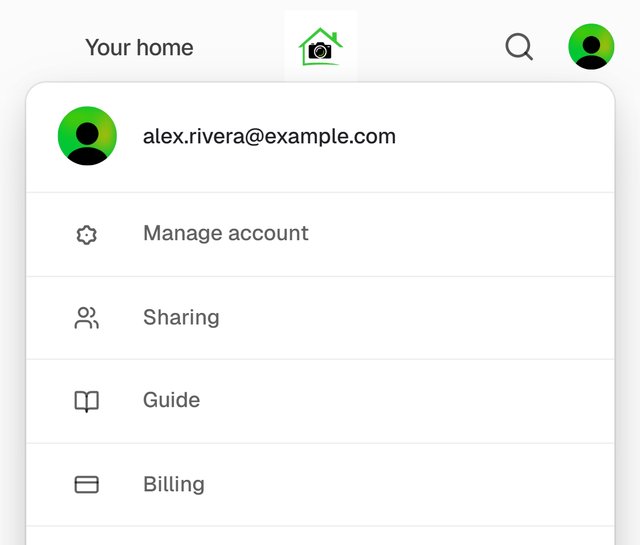
Tap your photo at the top right, then choose Sharing.
2. Invite a member
- Under Invite a member, enter the email address of the person you want to add.
- Choose Send invite.
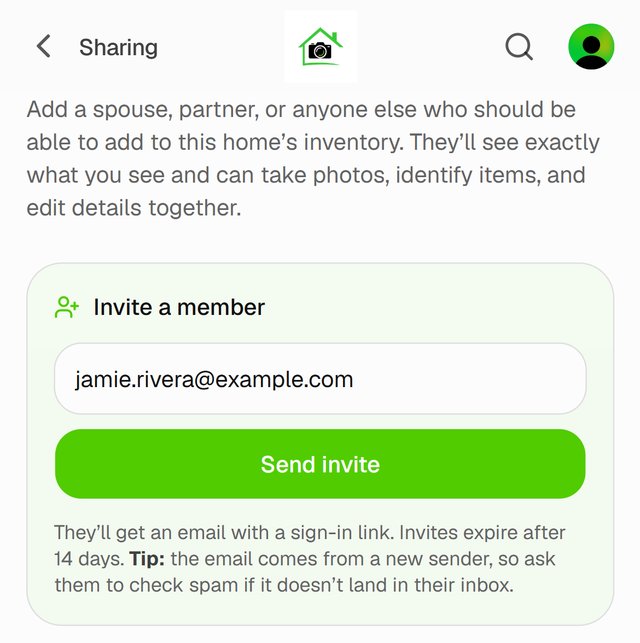
We email them a link to join your home. The invite expires after 14 days.
Tip: the email comes from a sender they haven't heard from before, so tell them it's on its way and ask them to check their spam folder.
3. Your member accepts
Your member opens the link in the email, then creates a free Homvi account or signs in to the one they have. They need to use the same email address you sent the invite to.
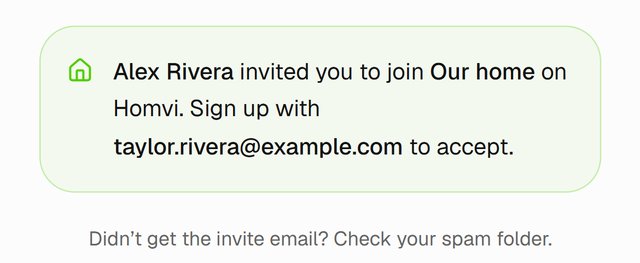
Once they accept, your home opens for them.
4. See who's in your home
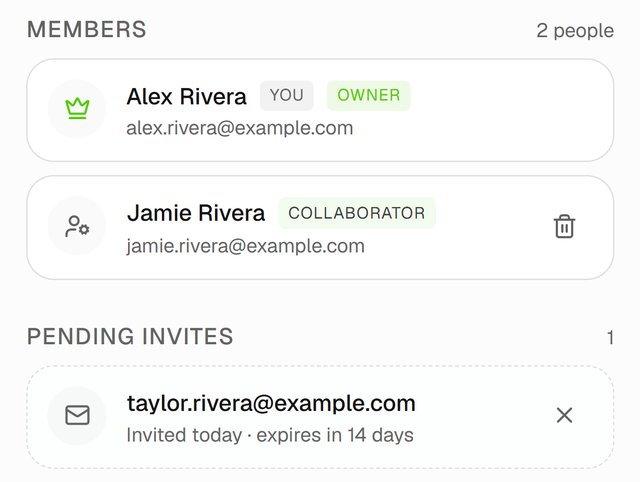
Back on Sharing, everyone in your home is listed under Members. Invites that haven't been accepted yet are under Pending invites, with how long they have left.
What members can do
- See everything in your home: rooms, items, photos and values.
- Add items: take photos, scan barcodes, and edit details. Photo scans come out of your home's yearly allowance.
- Search the inventory and export it.
Only you, as the owner, can invite or remove members, change the home's address and details, or upgrade the plan. Members can't see any other homes you have.
Remove a member or cancel an invite
- To remove a member, tap the trash icon next to their name, then confirm. Anything they added stays in your home.
- To cancel an invite, tap the X next to it.
- To send an invite again, cancel it, then invite the same email.
Good to know
- If you're a member and want to leave a home, open Sharing and tap the leave button next to your name. You'll lose access to that home's inventory.
- If your home moves from Complete to Essential, your members keep their access, but only you can add items. They can still view, search and export everything.