Open a room and tap Add more items. You can add items four ways, and mix them freely. Most people photograph a room first, then add the rest by hand.
Take a photo or upload one
Best for documenting a whole room, fast.
Tap Take photo to use your camera, or Upload photo to use one you already have. Homvi's AI finds the most prominent items, up to 10 per photo, and suggests a name, category and replacement value for each. Untick anything you don't want and fix any details, then save.
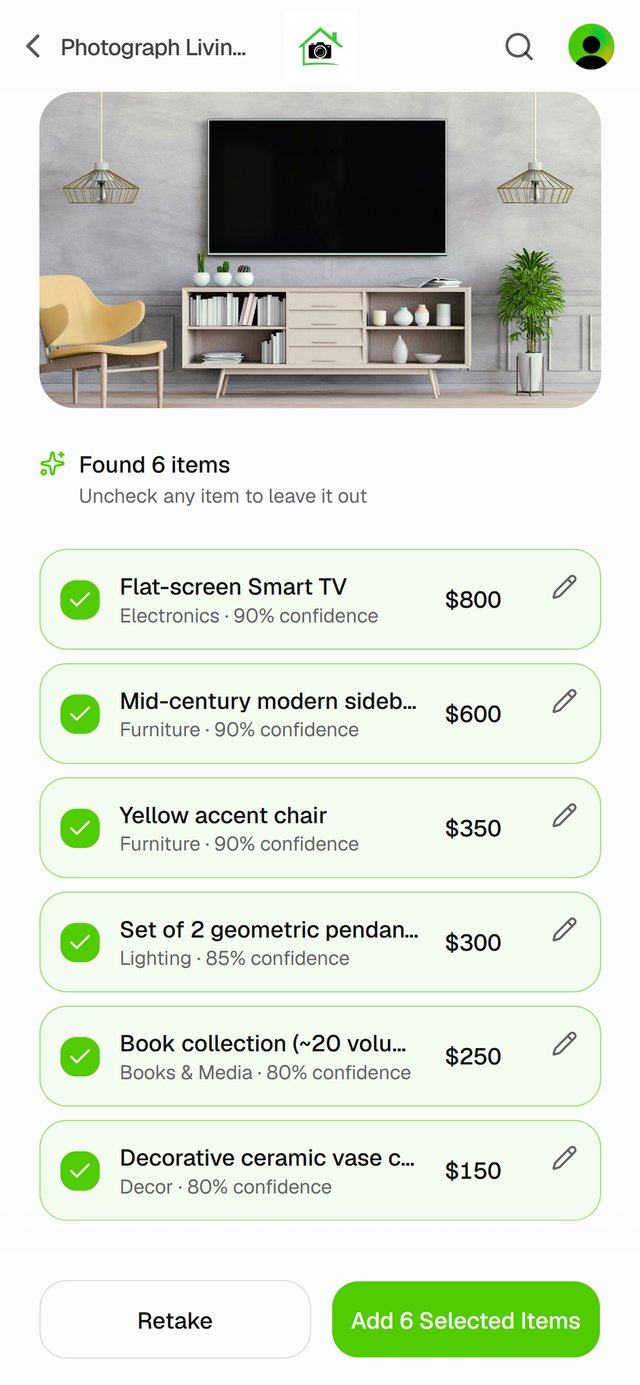
Each room holds up to 4 room photos, so a big room can take a few shots.
Scan a barcode
Best for electronics, appliances, tools and books.
Tap the barcode button next to Add more items and point your camera at the barcode. Homvi looks it up and fills in the name, brand and model for you to check. Recorded prices can be out of date, so check the value too.
Add manually
Best for items you know better than any AI could. A photo can't tell a $500 necklace from a $15,000 one, so for fine jewelry, art and collectibles, enter the value from your receipt or appraisal yourself. It's also handy when the photo is already on your phone or computer and you'd rather type the details.
Tap Add manually. Name, estimated value and category are required. Add a photo from your camera or library if you like, and tap + Add more details (optional) for brand, model, serial number and purchase details. Then tap Save item.
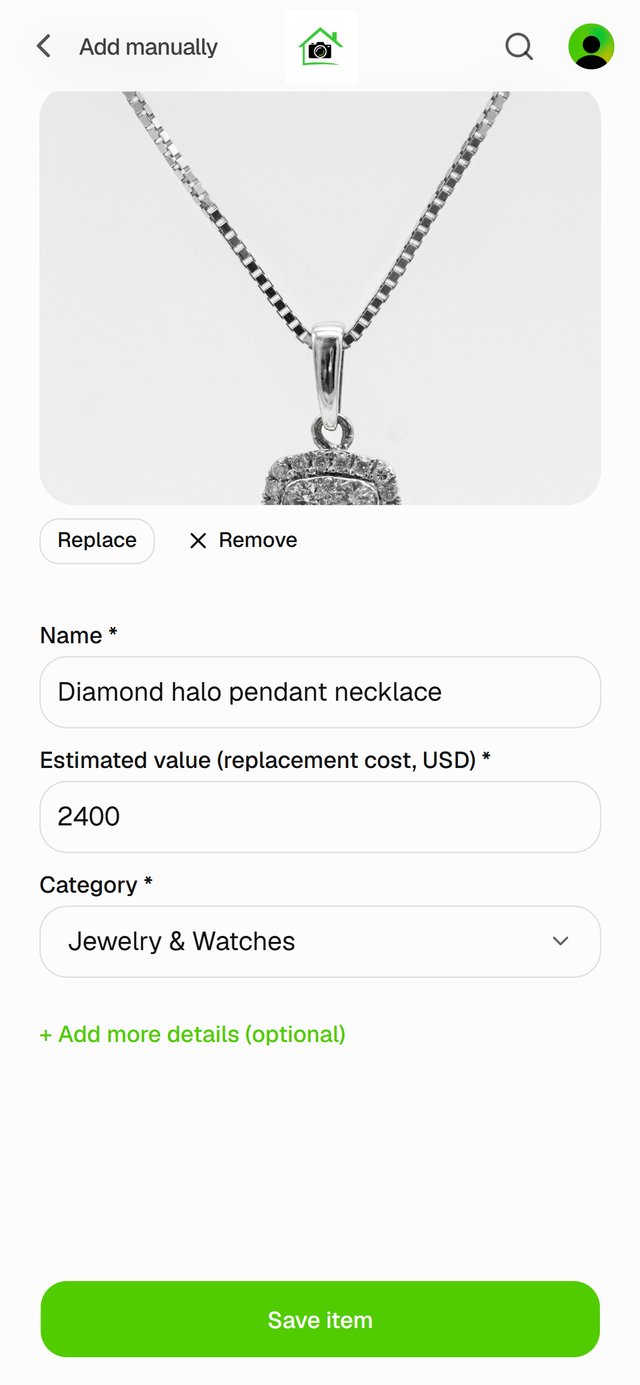
Whichever way you add an item, you review it before it's saved, and Homvi flags anything that looks like an item you already have.