Homvi Pro lets you give your clients a year of Homvi, with your name on it. Your client builds a record of everything in their home, and your name and contact details sit at the top of their app all year.
This guide takes you from your join link to sending your first client their year. It takes about 10 minutes.
Before you start: Homvi Pro lives on the web. Use Homvi Pro in a web browser, on your computer or on your phone, at app.homvi.ai. Homvi Pro is not in the Homvi iPhone app. The iPhone app is for your own home inventory. If you open the app, you'll see your own home, not your clients. To manage your clients from your phone, open app.homvi.ai in Safari or Chrome instead. Tip: add it to your phone's home screen so it's one tap away.
1. Open your join link
Start from Get Homvi Pro on homvi.ai/pro, or from a link someone sent you.
If your link includes a discount code, you don't need to type it anywhere. It's applied automatically when you check out.

2. Create your Homvi account
You'll see the Join Homvi Pro page.
- Read and tick the User Agreement box.
- Sign up with Google or Apple, or with your email and a password.
- If you used your email, enter the 6-digit code we send you.
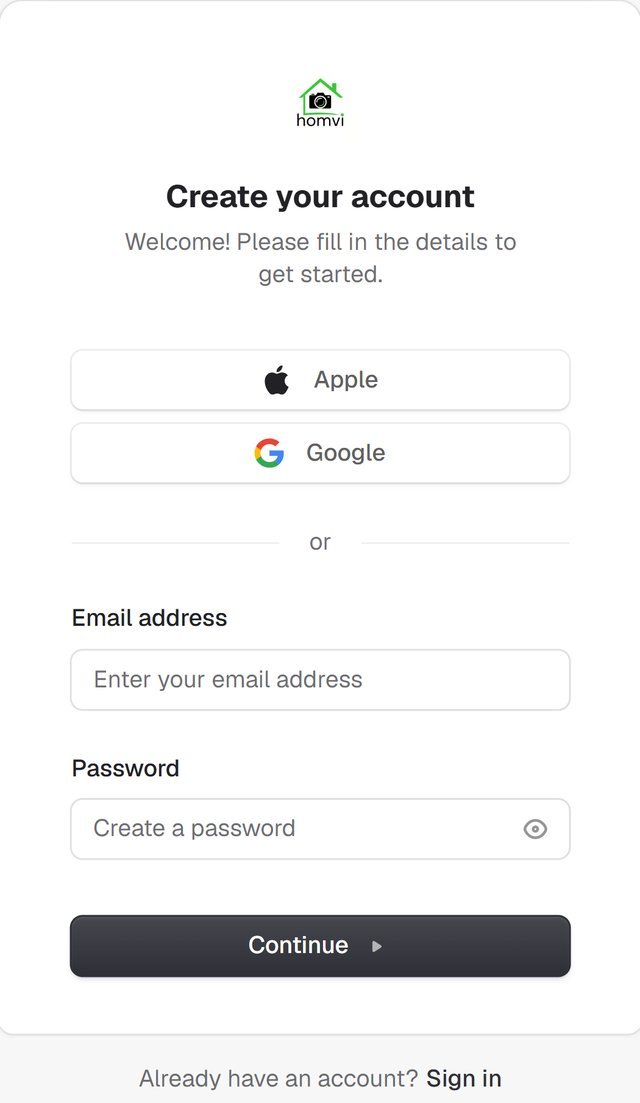
Already have a Homvi account? Choose Sign in at the bottom of the page instead. You'll come straight back here to join.
Using a work email? That's fine. You can add a personal email to the same account later, under Manage account, and sign in with either. That keeps your own home inventory with you if you change companies.
3. Add your details
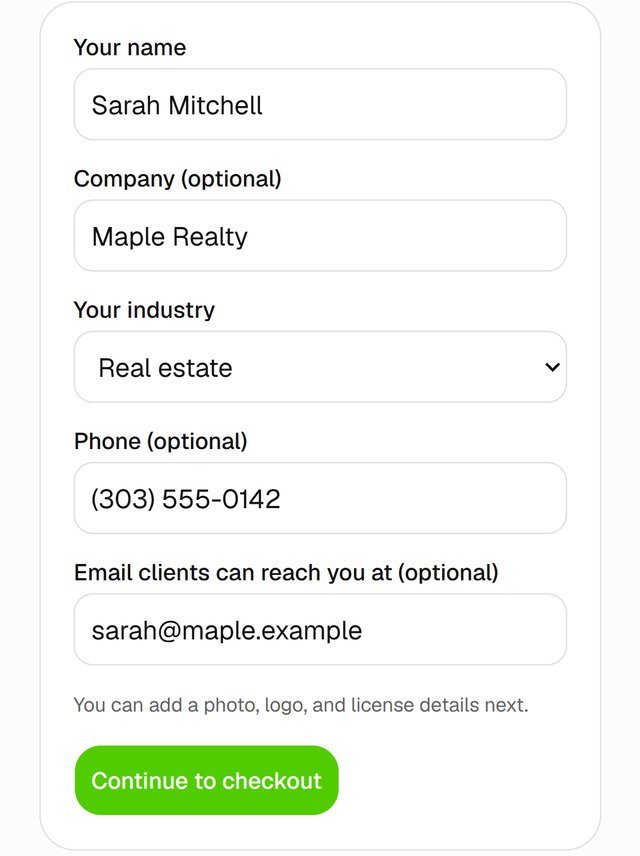
Tell us what your clients will see:
- Your name and company
- Your industry (for example Real Estate, Insurance, Financial or Moving)
- The phone number and email clients should use to reach you. This can be different from the email you sign in with.
You can add your photo or logo after you join. Choose Continue to checkout.
4. Check out
Checkout is handled by Paddle, our payment partner. It opens on top of the page.
- Enter your country and postal code, then your payment details.
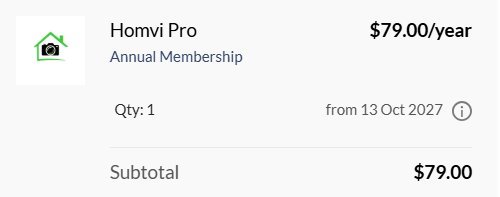
- Check the summary: your membership, any discount, and the tax for your area.
- Complete your purchase.
Good to know:
- Your membership renews every year. Paddle shows the next renewal date and amount before you pay. You can turn off auto-renew any time after you join (see Billing and renewal).
- Paddle emails you a receipt.
- Have a promo code that wasn't in your join link? Here's how to enter it at checkout.
5. Your Pro account is ready
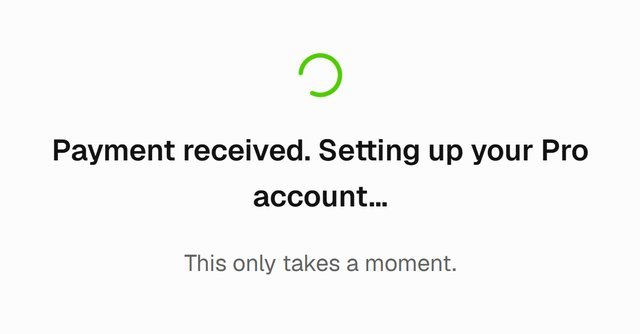
After you pay, you'll see Payment received. Setting up your Pro account… for a few seconds, then your Pro dashboard. We also send you a welcome email with your next steps.
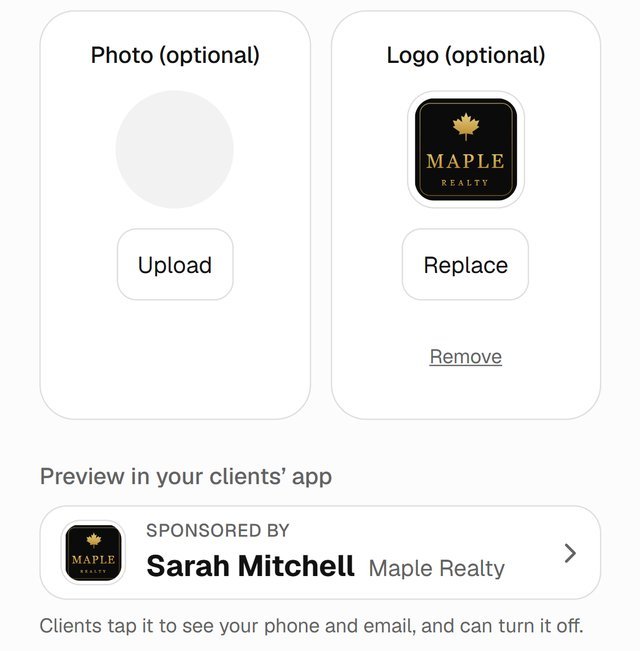
6. Add your photo or logo
Open Your profile and add a headshot or your company logo, and choose which one clients see.
This is what your clients see every time they open Homvi, so it's worth doing first.
7. Send your first client their year
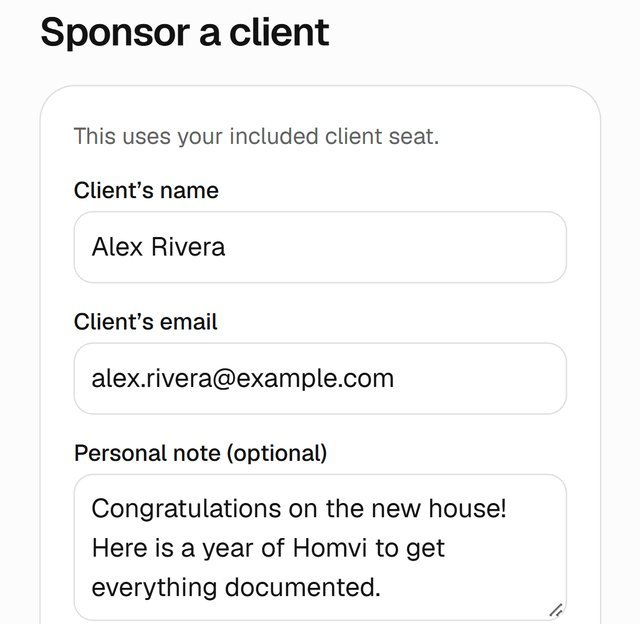
Your membership includes one client each year.
- Choose Sponsor a client.
- Enter your client's name and email.
- Choose how to send it: We email it for you, with your name on it, or Copy the link and send it yourself, by text or your own email.
Your client's 12 months start when they sign up, or 30 days after you send it, whichever comes first.
Tip: after you send it, give your client a quick heads-up by text so they look for the email.
Next: What your client sees.