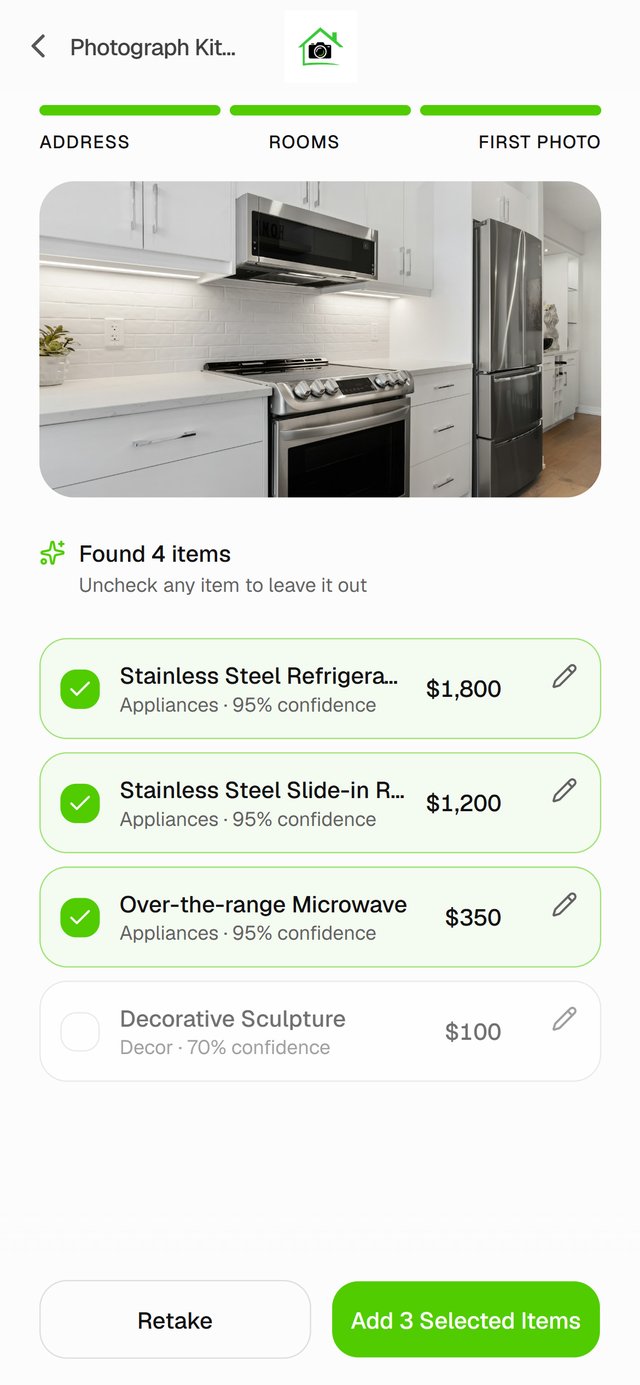
Nothing from a photo is saved until you say so. Every item the AI finds lands in a review list first.
Leave an item out
Tap the item to untick it. The button at the bottom counts only the items you keep.
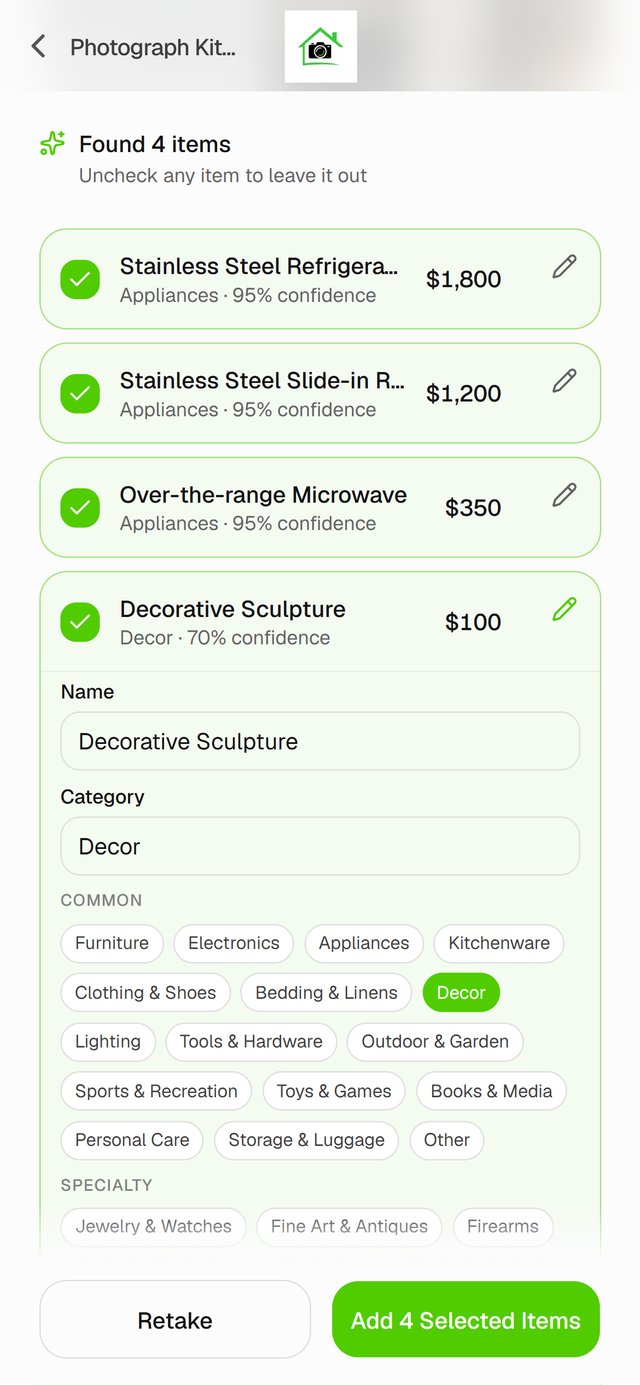
Fix a name, category or value
Tap the item's pencil. Change the Name, pick a Category, or edit the Estimated value, then tap the pencil again to close it.
Add something the AI missed
Save what the AI found, then add the missing item from the same photo:
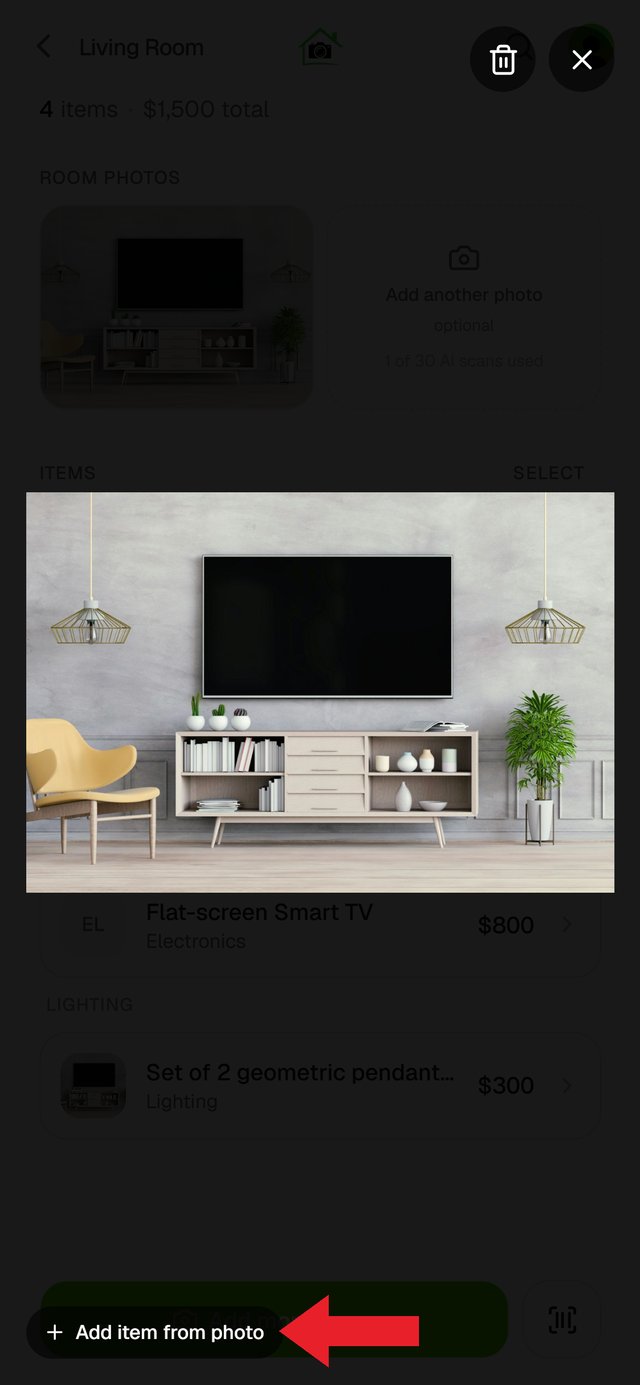
- In the room, tap the room photo to open it full screen.
- Tap Add item from photo.
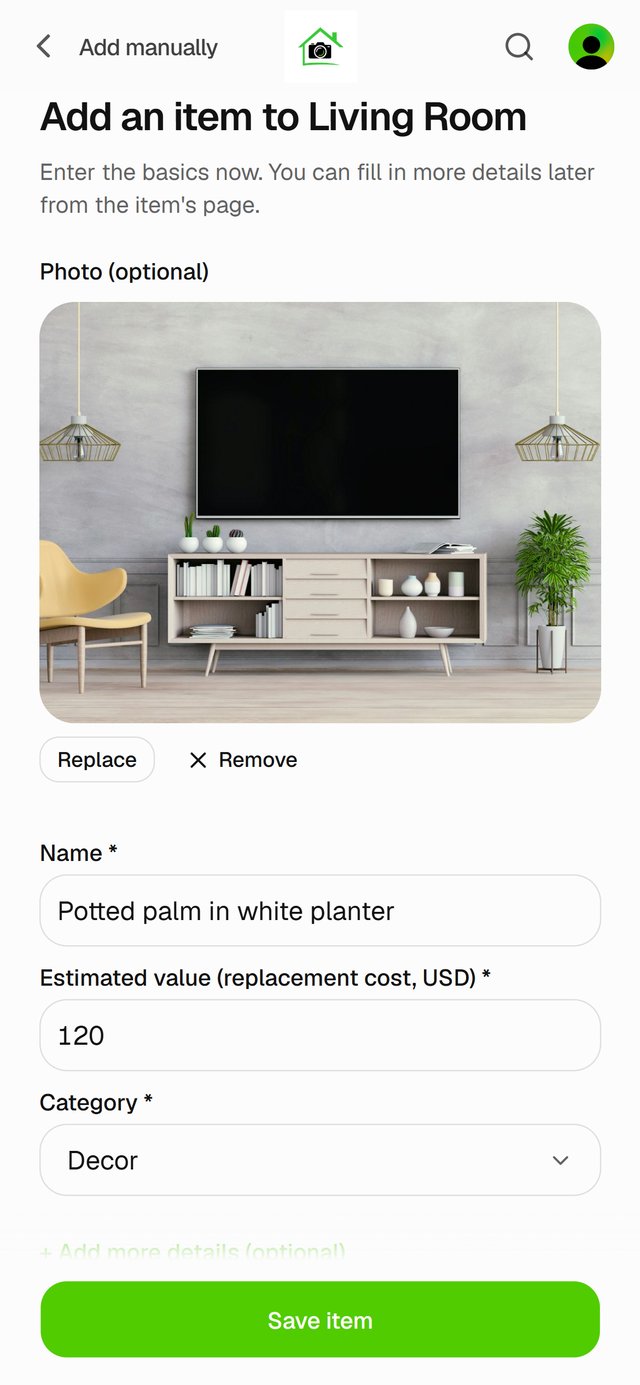
- The room photo is already attached. Enter the name, value and category, and tap Save item.
You can also take another photo of that corner, or use any of the four ways to add an item.
You can change any item later, too: see Edit an item.