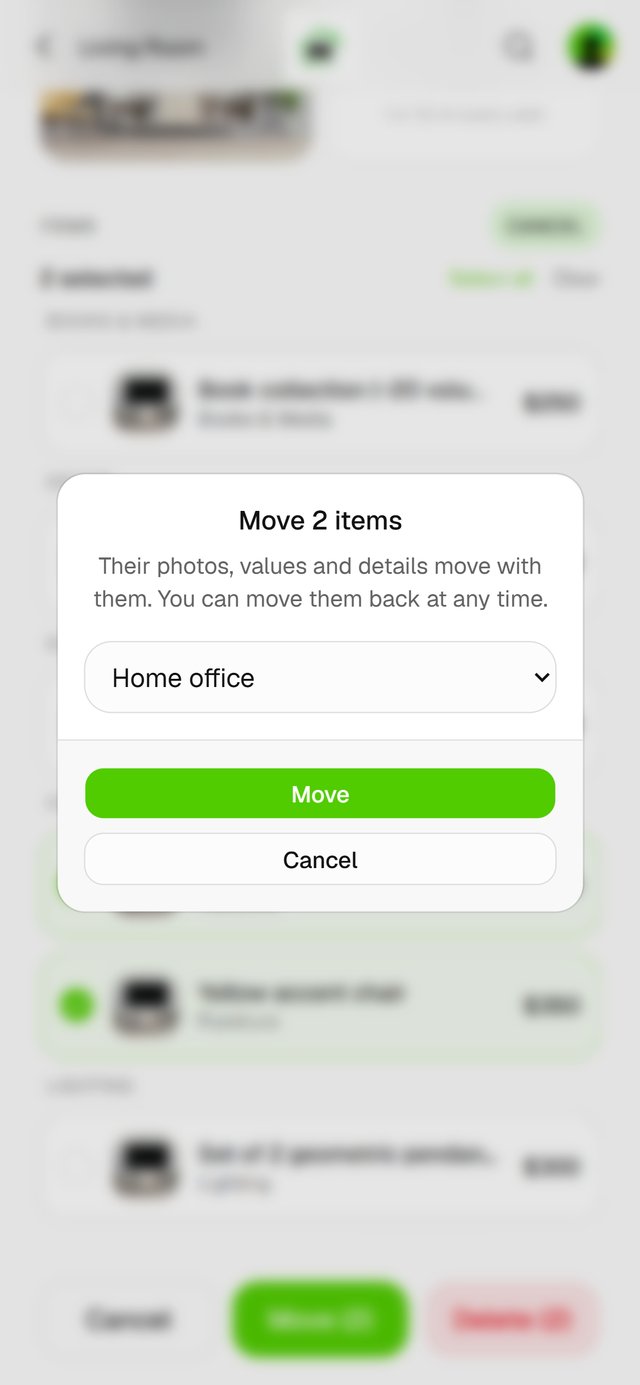
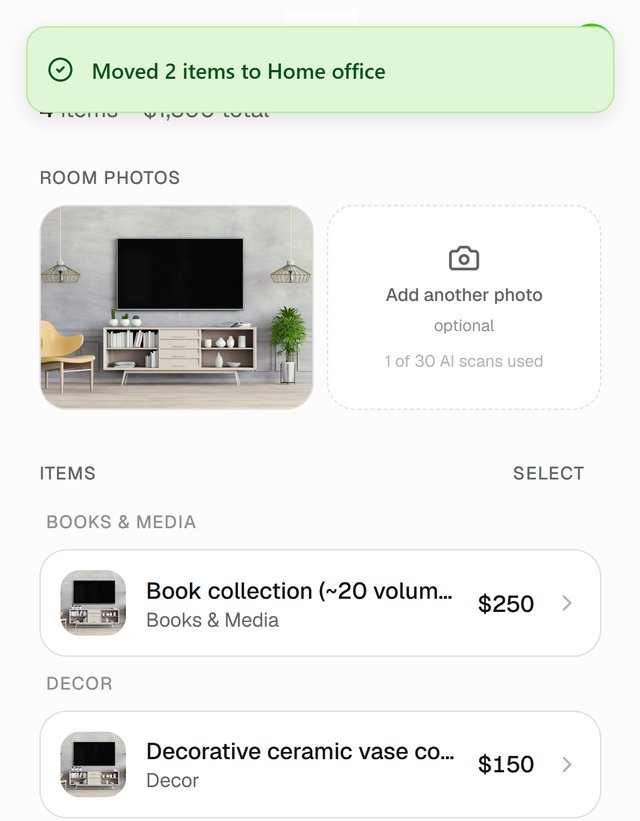
Items keep their photos, values and details when they move, and you can move them back any time.
Move several items
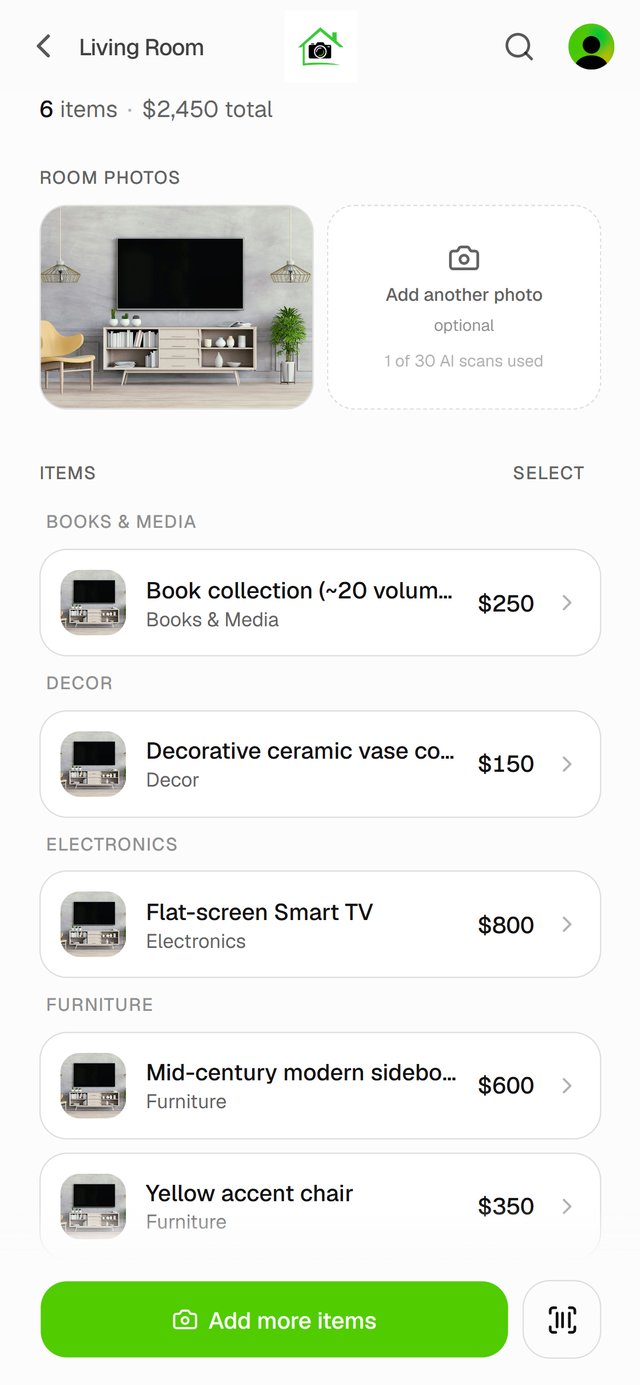
- Open the room and tap Select, at the top right of the Items list.
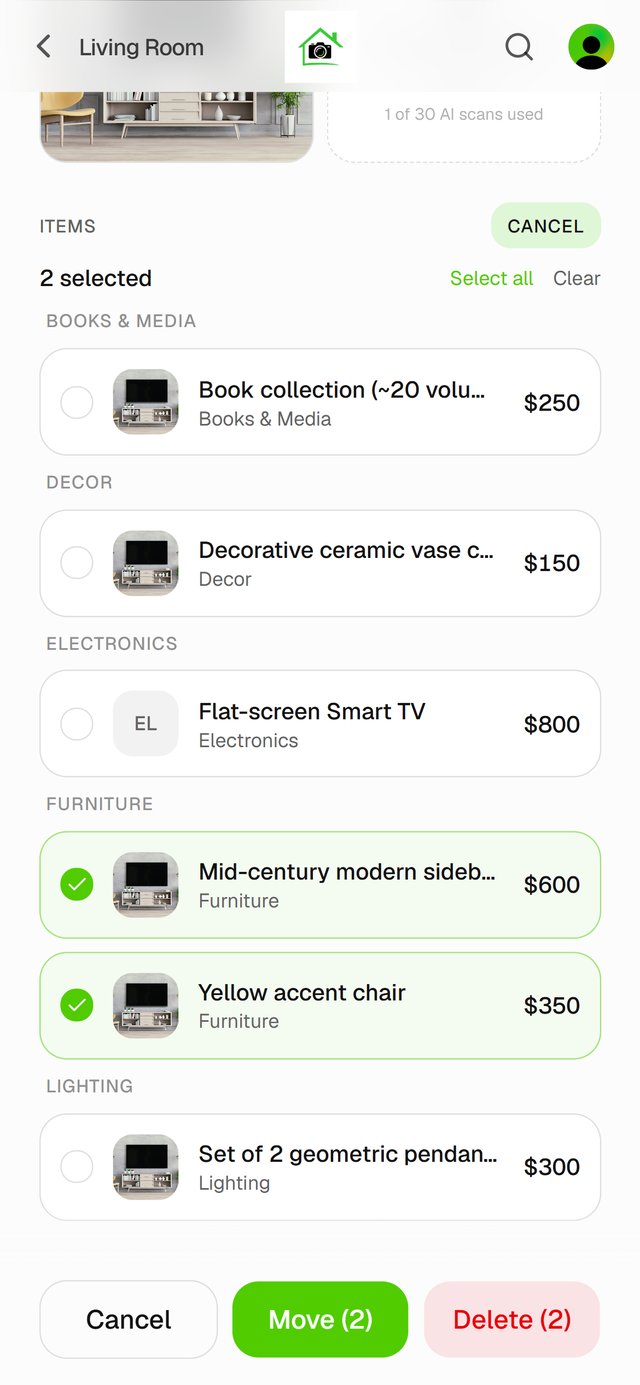
- Tap the items you want to move. To take everything in the room, tap Select all.
- Tap Move, choose the room, and tap Move again.
Move one item
Open the item, change its Room, and tap Save changes.
Good to know
- The same selection can delete items. Tap Delete instead of Move. That can't be undone, so to empty a room without losing anything, move the items instead.