An item found in a room photo uses that room photo. You can remove it, and give any item its own photo.
Remove a photo
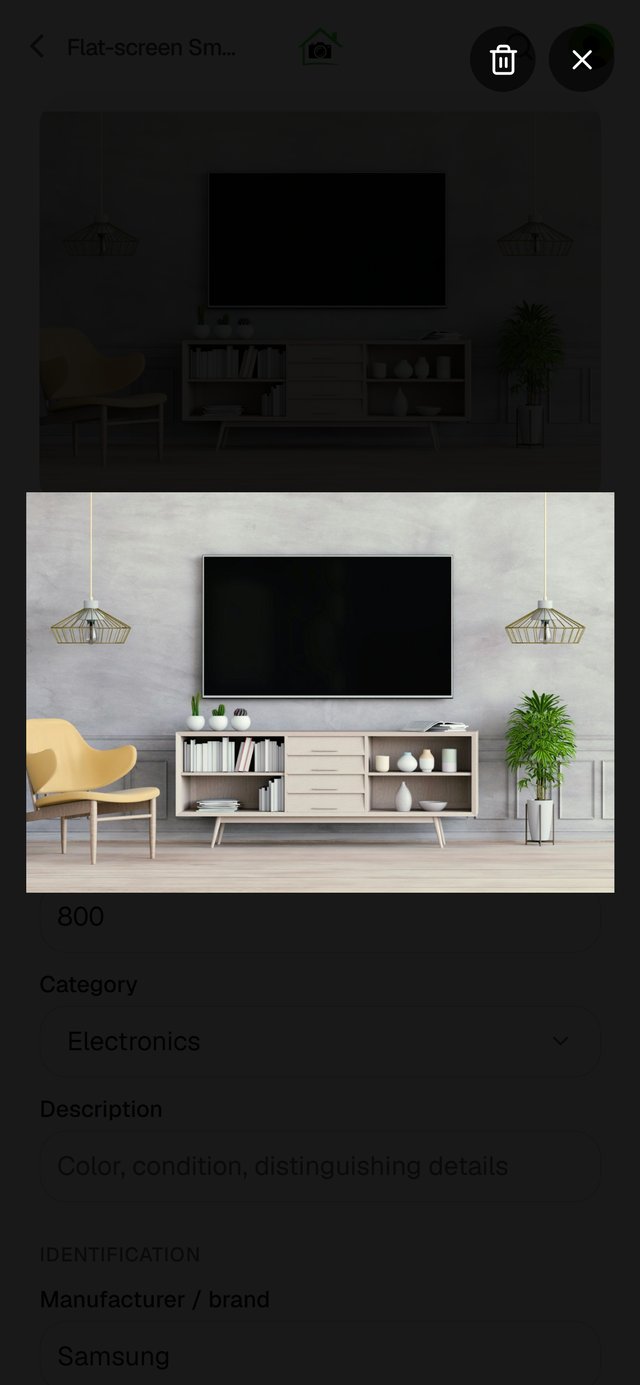
- On the item's page, tap the photo to see it full screen.
- Tap the trash icon at the top.
- Tap Remove photo.
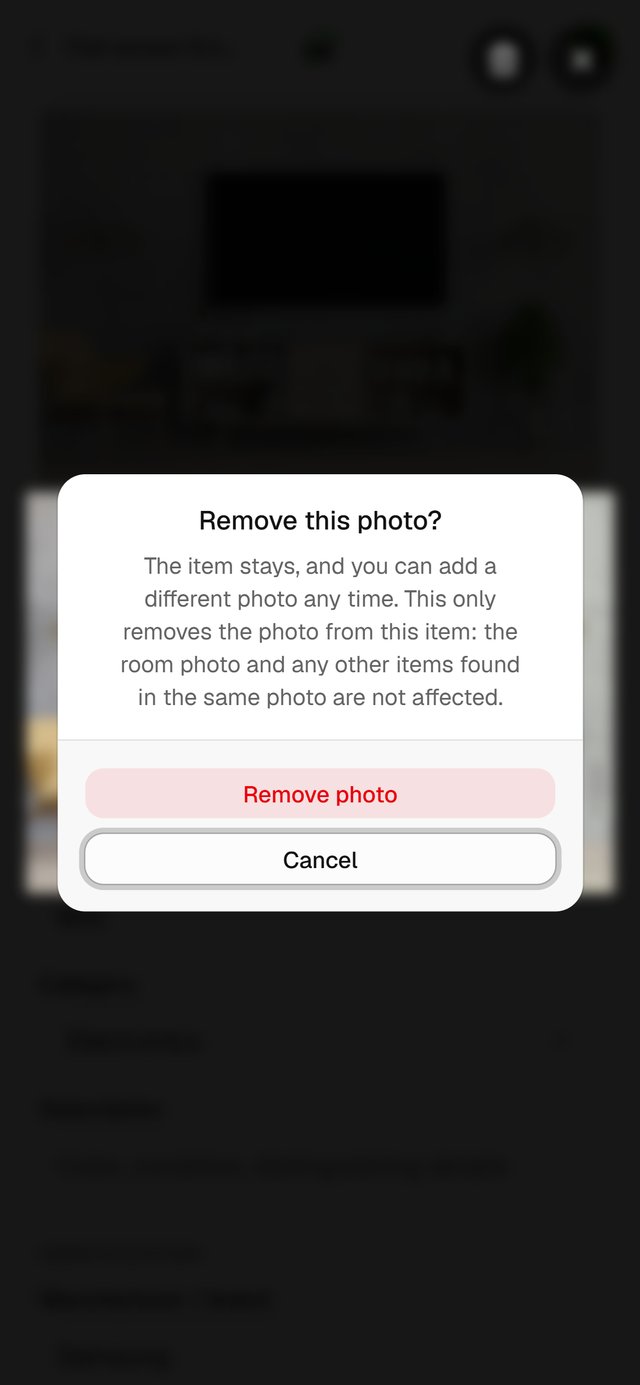
The item stays. Removing the photo here doesn't touch the room photo or any other item found in it.
Add a photo
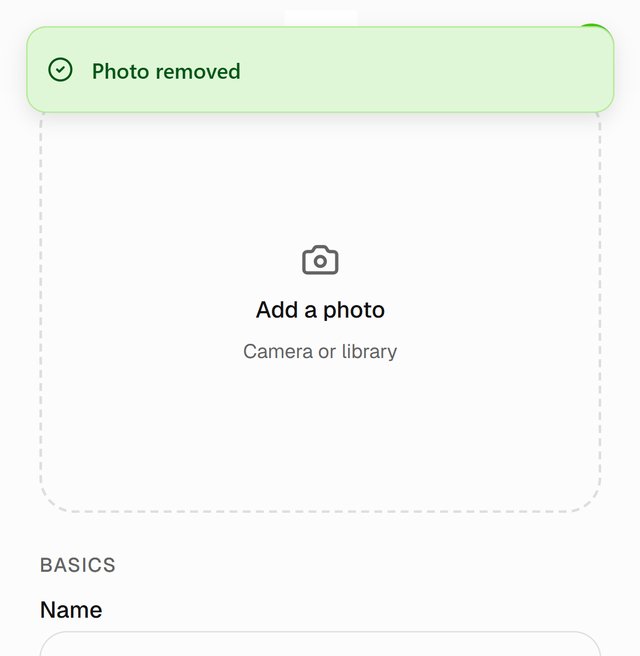
Tap Add a photo on the item's page, then take one or choose one from your library.
Good to know
- To swap a photo, remove it, then add the new one.