Homvi sets up your rooms for you, then you fill them in one photo at a time. This walks you from sign-up to your first room of items.
1. Create your account
Tap Get started on homvi.ai. First, tick the box to agree to the User Agreement.
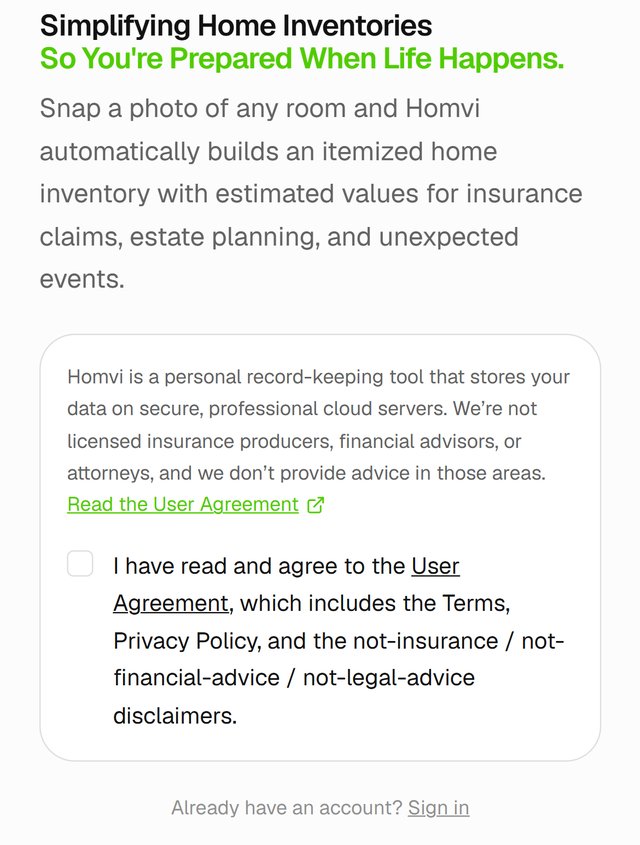
Then sign up with Apple, Google, or your email and a password. If you use email, enter the 6-digit code we send you.
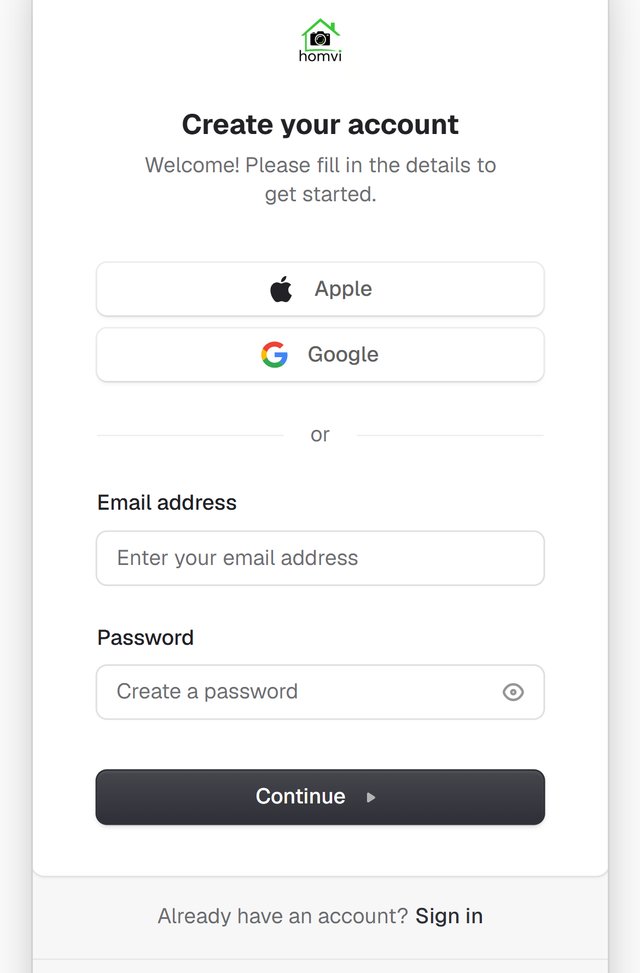
In the iPhone app, you sign up with Apple or email.
2. Start setup
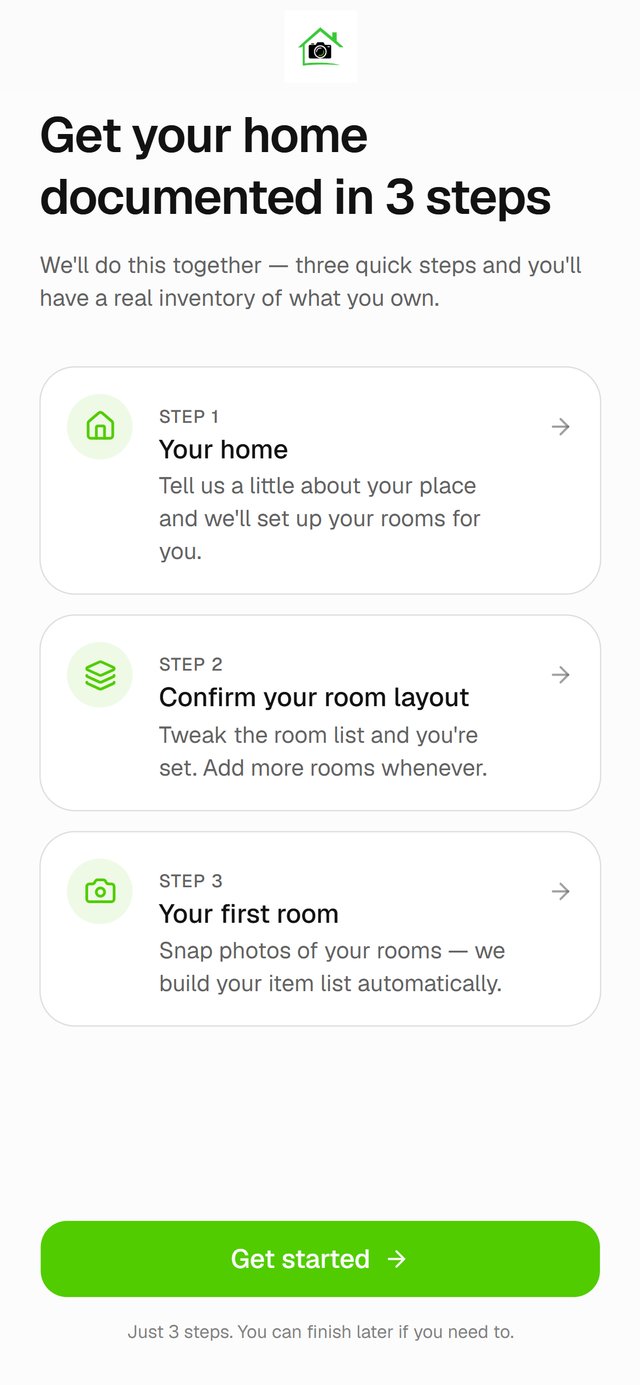
You'll see Get your home documented in 3 steps. Tap Get started.
3. Add your address, or skip it
With an address, Homvi fills in your bedrooms and bathrooms from public records and puts the address on your reports. Start typing it and pick it from the list. If we find your home, you'll check the details before you go on. Public records are only available for US addresses.
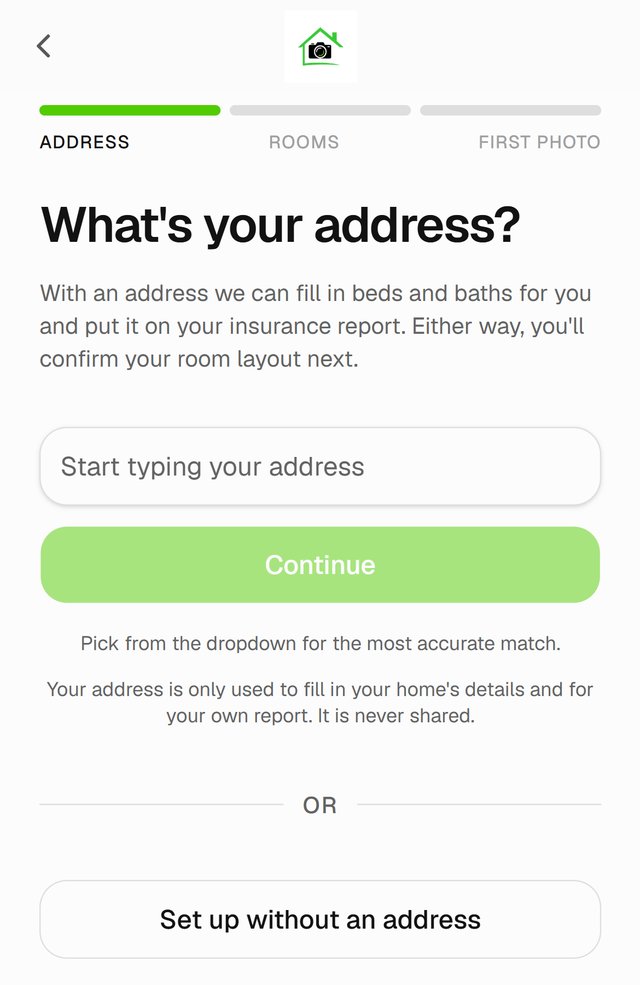
Rather not, or not in the US? Tap Set up without an address. Give your home a name if you like, enter the number of bedrooms and bathrooms, and tap Continue.
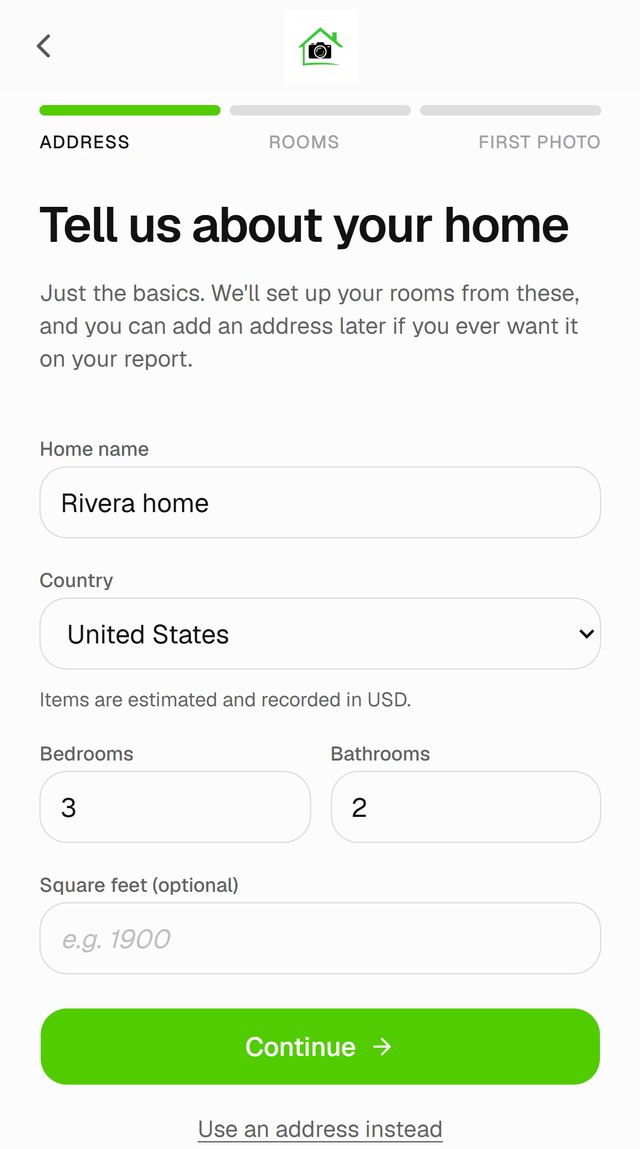
4. Check your rooms
Homvi builds a room list from your bedroom and bathroom count.
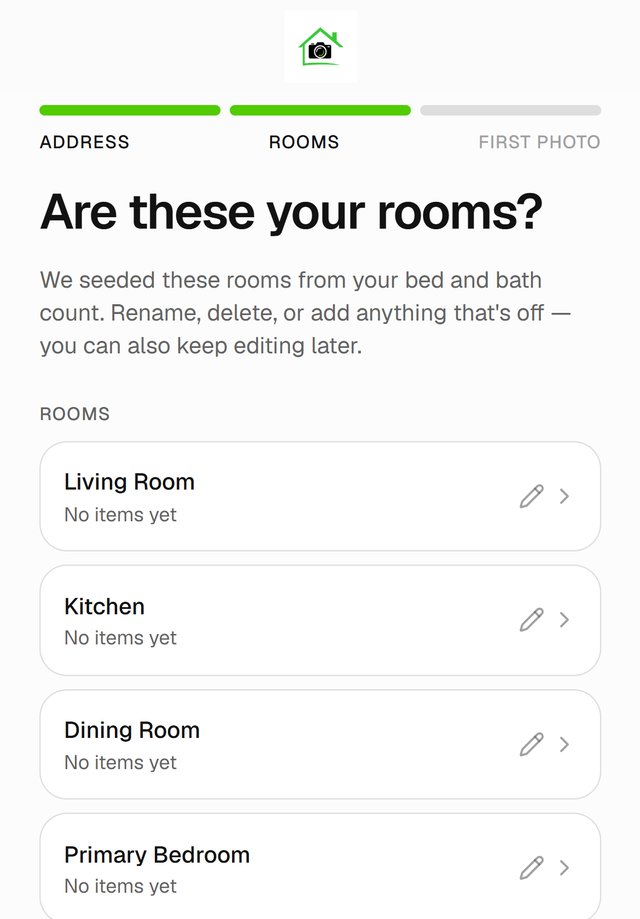
Need one that isn't there, like an office? Tap Add a room at the bottom. When the list looks right, tap Continue setup. You can rename, add or delete rooms any time later from Rooms.
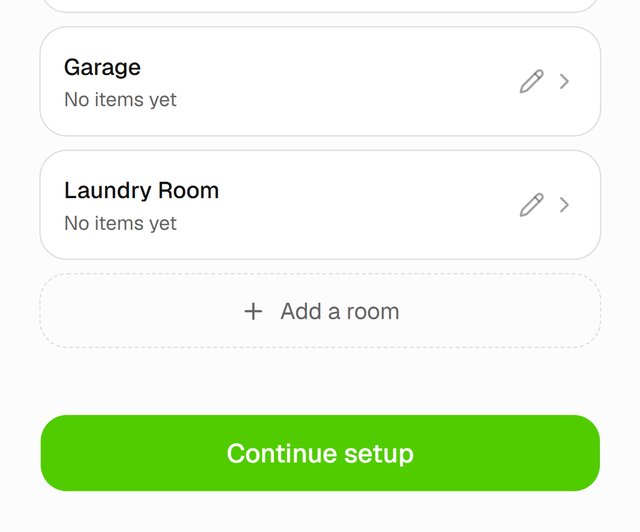
5. Photograph your first room
Homvi suggests a room to start with. Tap the big green button to photograph it, or Pick a different room.
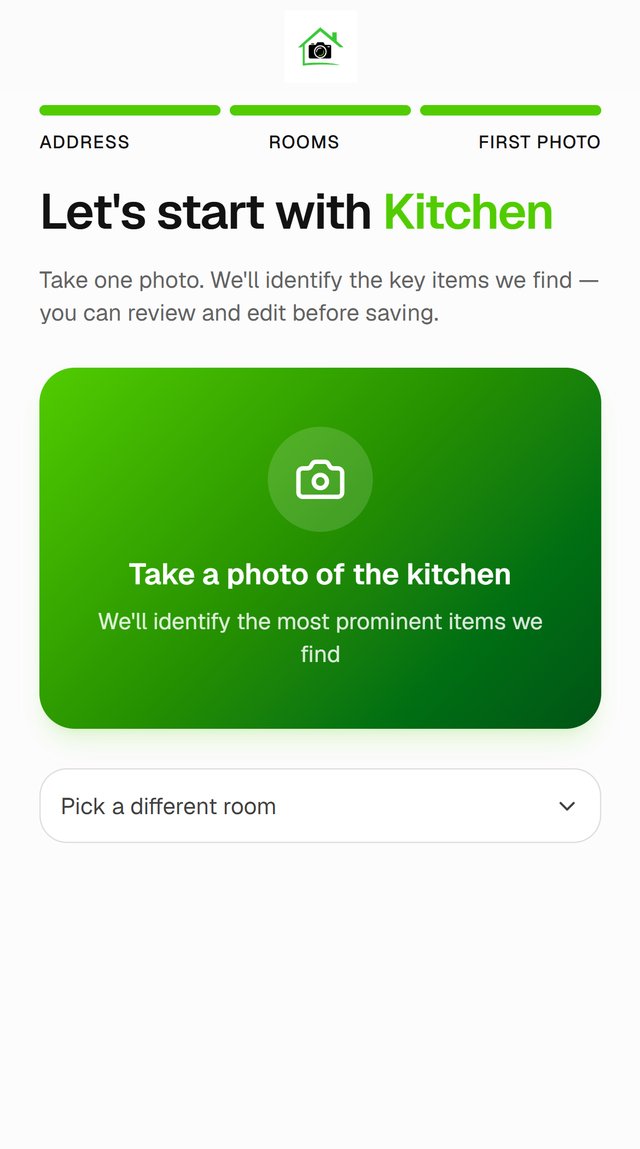
Tap Take photo to use your camera, or Upload photo to choose one you already have. Stand back and fit as much of the room in the shot as you can.
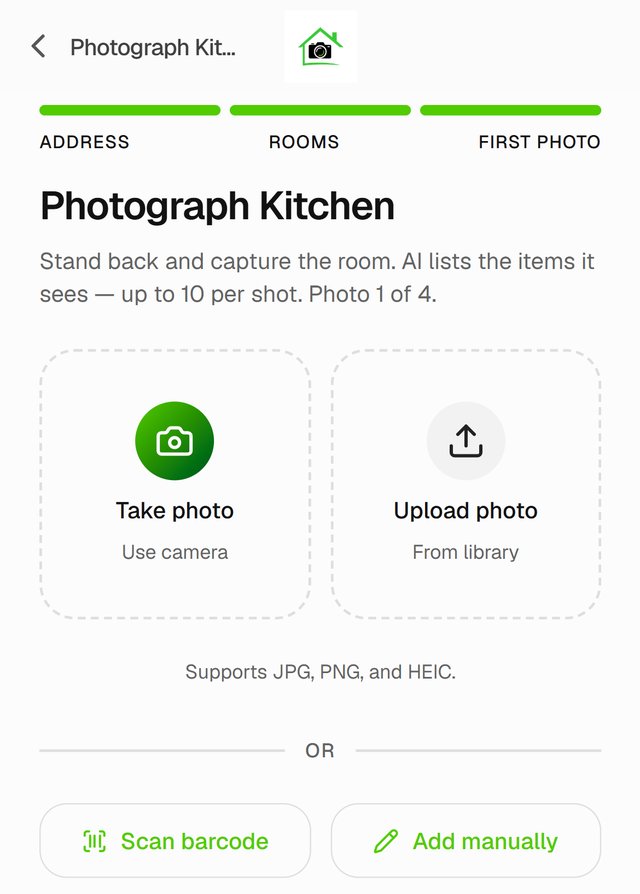
6. Review what Homvi found
Homvi lists the items it found, up to 10 per photo, each with an estimated value. Tap an item to leave it out, or tap its pencil to fix the name, category or value. Then tap Add N Selected Items.
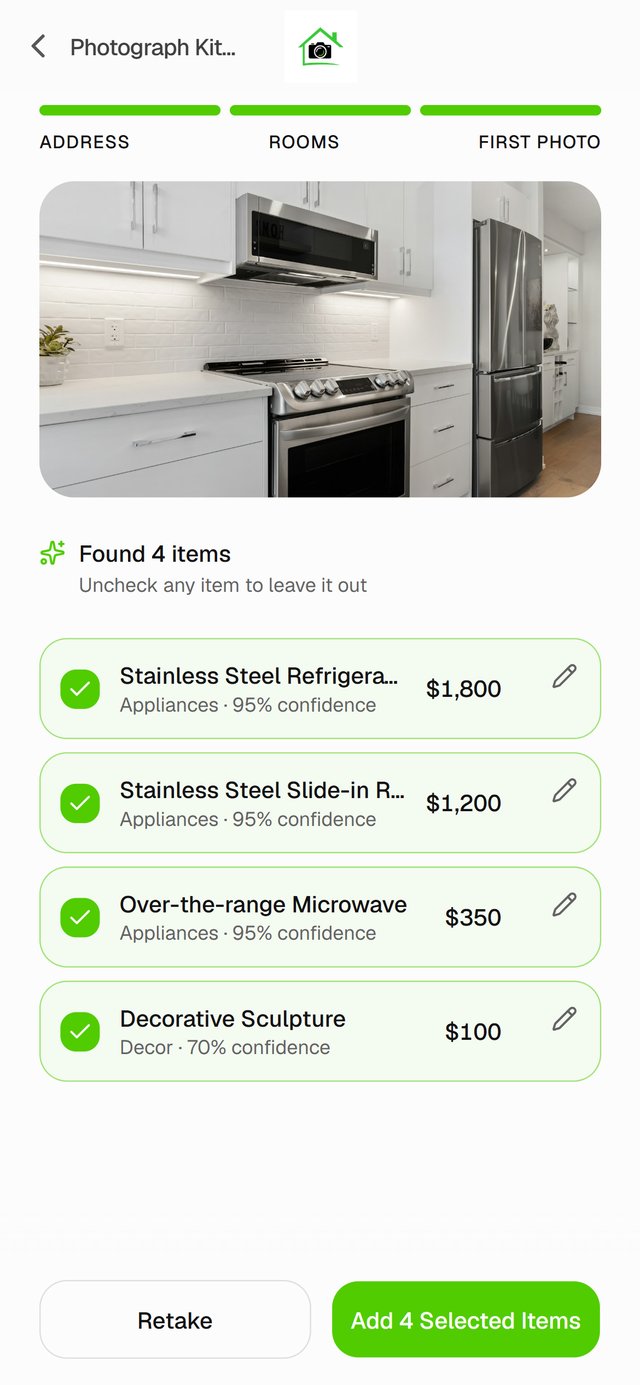
More on this: What if the AI misses an item or gets one wrong?
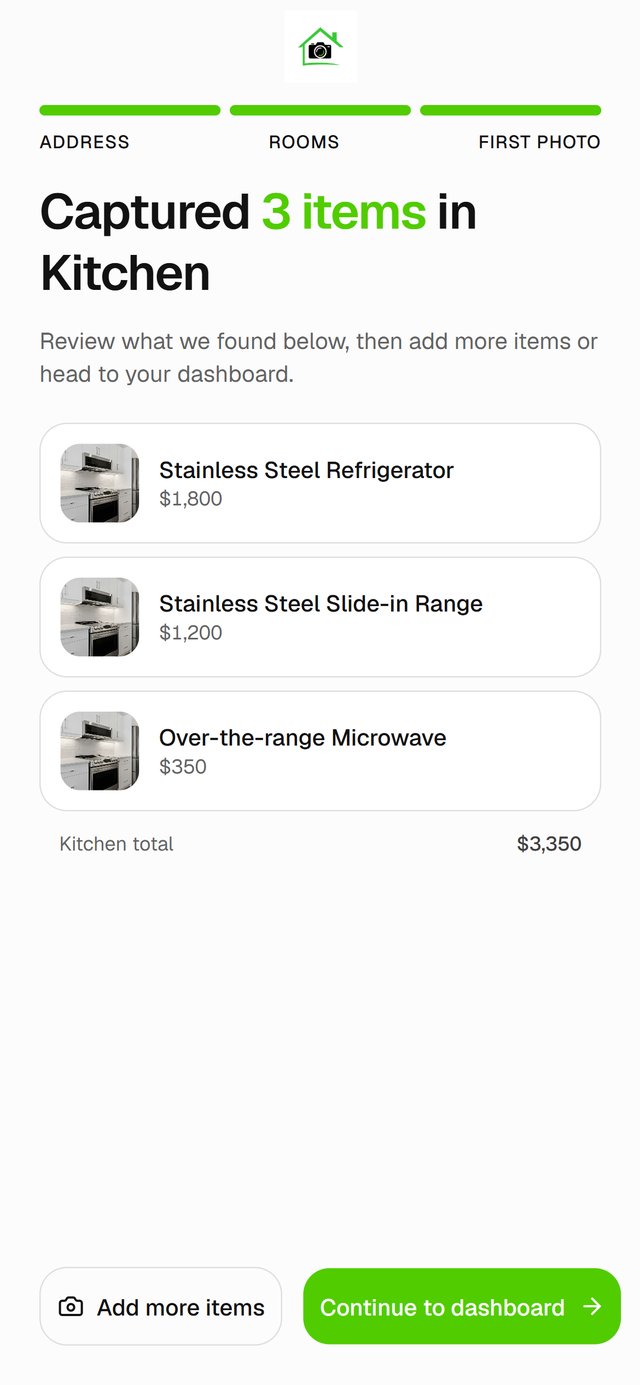
7. You're set up
You'll see what you captured and the room's total. Tap Add more items to keep going in this room, or Continue to dashboard.
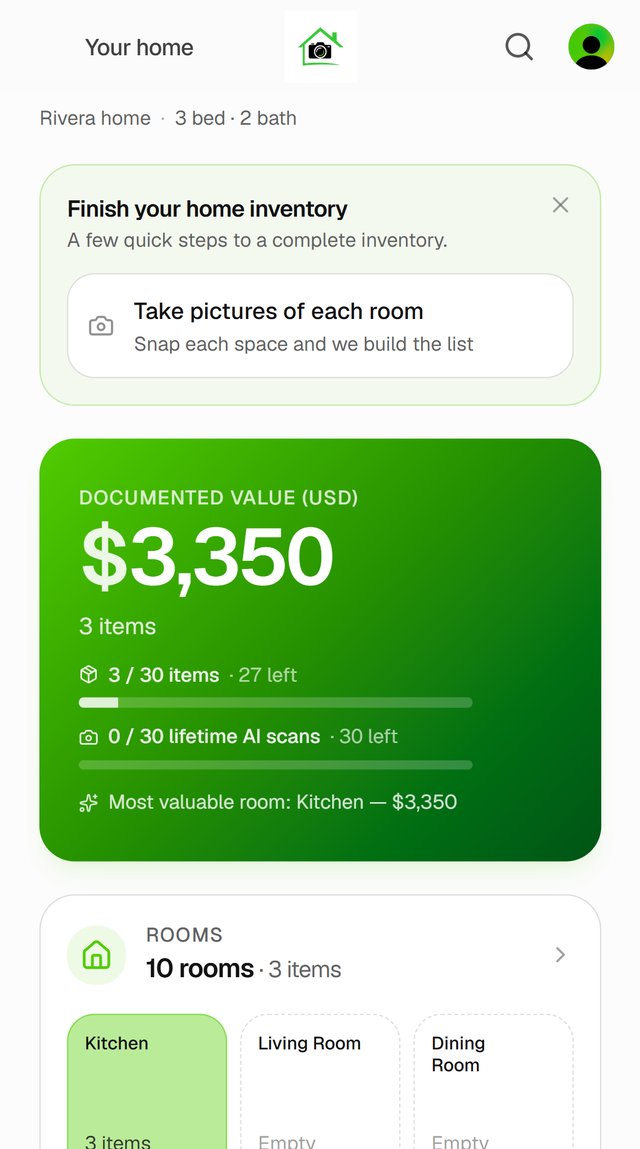
Your dashboard shows your documented value, your rooms, and a short checklist of what to do next.
Good to know
- Short on time? Tap I'll do this later on the first-photo screen. The checklist on your dashboard picks up where you left off.
- On the free Essential plan, the dashboard shows how many items and AI photo scans you have left.